
MCP Google Analytics, Search Console, GTM and Google Ads: connect Claude to your marketing data

Amaury
Founder · CDO on demand
25 October 2026
One service account, one JSON file, four read-only accesses: within an hour, Claude queries GA4, Search Console, GTM and Google Ads for you. The complete guide, with screenshots.
Monday morning, 9 a.m. Your organic traffic is down 15% on the week. To figure out why, you open GA4, then Search Console, then GTM to check that nobody broke a tag on Friday, then Google Ads because the budget may have moved. Four interfaces, four logics, three CSV exports. Forty minutes later, you have a hypothesis.
This guide shows you how to plug Claude directly into those four Google tools (and into Meta Ads), so you can ask the question once and get a cross-referenced answer. Not with yet another paid connector: with a Google service account, a JSON file and read-only access. It's the setup I use on client engagements to produce traffic diagnostics and tagging plan audits.
Why this matters (and why it's not a gimmick)
The point is not "AI reading your dashboards". The point is the time between a business question and a reliable answer.
In most marketing teams I work with, that time is measured in days. The data exists, but it's scattered across tools that don't talk to each other, and the one person who knows how to build the right GA4 query is always in a meeting. The result: you steer by gut feeling, or you wait for the monthly report to discover a problem that's three weeks old.
Once Claude is connected through the APIs, three things change in practice.
Cross-tool diagnosis becomes a question, not a project. "Organic sessions have been dropping since the 12th: which pages are losing clicks in Search Console, and was a GTM container version published that day?" Claude queries the three APIs, cross-references them, and answers with the numbers. You verify, you no longer collect.
Audits become recurring. Listing paused GTM tags, orphaned triggers, GA4 events missing from the tagging plan, Google Ads search terms that spend without converting: these are audits you run once a year because they're expensive. With API access, you can rerun them every week, or even schedule them.
The data stays at Google, and access stays under control. No shared password, no export sitting around in a Drive. A service account has read permissions, on the properties you choose, and you can revoke it in one click. For a consultant, it's also the cleanest way to work with a client's data: they add one email address in their tools, and that's it.
(One limit worth keeping in mind: Claude doesn't invent your strategy for you. It speeds up collection and first-pass analysis. Business interpretation, prioritization and decisions remain your job.)
How it works, in two minutes
Claude doesn't "see" your Google accounts. It calls their APIs, like any piece of software would. So it needs a Google identity that's authorized to read the data.
That identity is a service account: a technical user, created in Google Cloud, with its own email address (something like claude-reader@your-project.iam.gserviceaccount.com) and an authentication key in the form of a JSON file. You give that file to Claude, you add the service account's email address as a user in GA4, Search Console, GTM and Google Ads, and Claude can query those tools with exactly the permissions you granted.
Two ways to use it from there:
- Through MCP servers (Model Context Protocol, the standard for plugging tools into Claude). Google itself publishes an official MCP server for Google Analytics and one for Google Ads. For Search Console, open source servers do the job. This is the ideal route in Claude Desktop or Claude Code.
- By letting Claude call the APIs directly, when it has access to a folder on your computer (Claude Code, or the Claude desktop app with a connected folder). You drop the JSON in that folder, and Claude writes and runs the queries itself. This is the most flexible route, and today the only truly reliable one for GTM.
The prerequisite is the same in both cases. Let's go.
Step 1: create a Google Cloud project and enable the APIs
Go to console.cloud.google.com. If you don't have a project yet, create a dedicated one (for example "claude-marketing-data"). Don't reuse a production project: a dedicated project means a clear scope and simple revocation.
Then open APIs & Services > Library and enable, one by one, the APIs you need:
- Google Analytics 4: Google Analytics Data API and Google Analytics Admin API
- Search Console: Google Search Console API
- Google Tag Manager: Tag Manager API
- Google Ads: Google Ads API
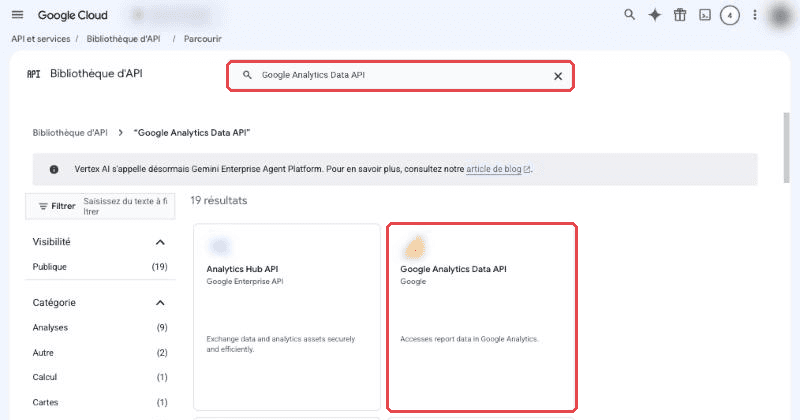
In the Library, type the API's name, then open its page.
On each API's page, click Enable. Once done, the button becomes "Manage" and the API shows up in the list of enabled APIs.
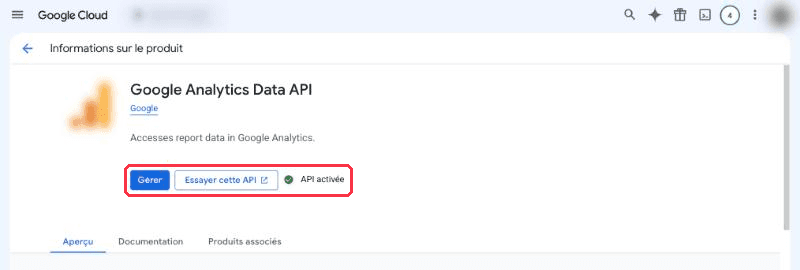
Before enabling, the blue button says "Enable". Afterwards, it becomes "Manage" with an "API enabled" label.
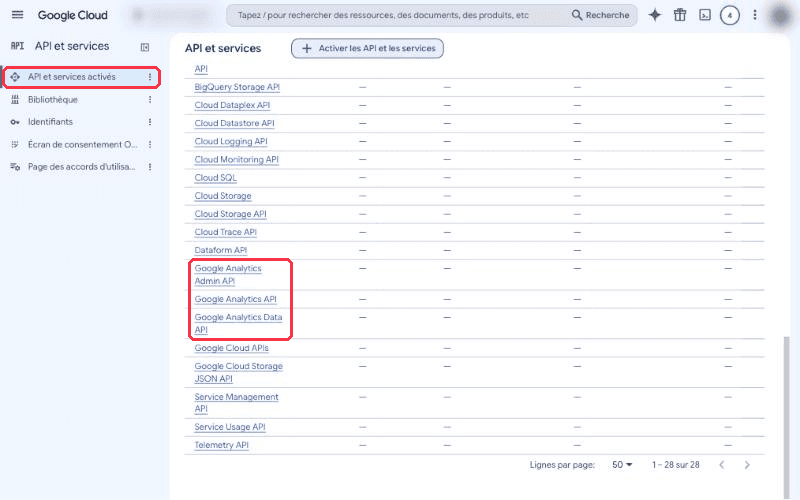
Check under "Enabled APIs & services": every API from your table should be there.
For Google Ads, one thing to watch: in September 2026, Google overhauled API access management (the developer token is no longer required for the official MCP server, and access is tied to the Google Cloud project). Check your project's access level in the official documentation before going further.
Step 2: create the service account and download the JSON key
Still in Google Cloud, go to IAM & Admin > Service Accounts, then click Create service account.
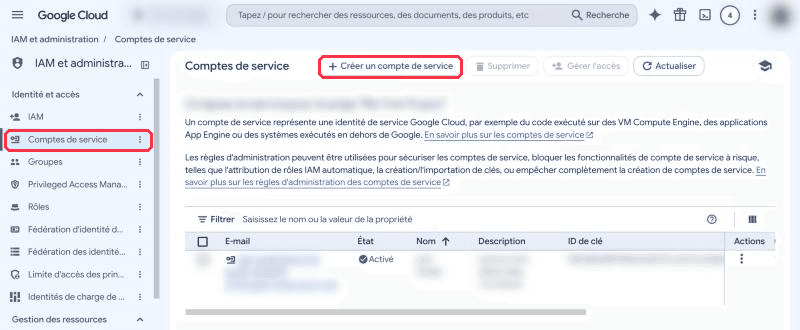
The service account is a technical user, scoped to this project.
Give it an explicit name, for example claude-reader. Google generates the email address automatically. Write it down: it's the address you'll add in every tool at step 3.
The next steps of the form offer to assign Google Cloud roles. Leave them empty. Access to GA4, Search Console, GTM and Google Ads doesn't go through Cloud roles, but through the permissions you'll grant in each tool. Fewer permissions, fewer risks.
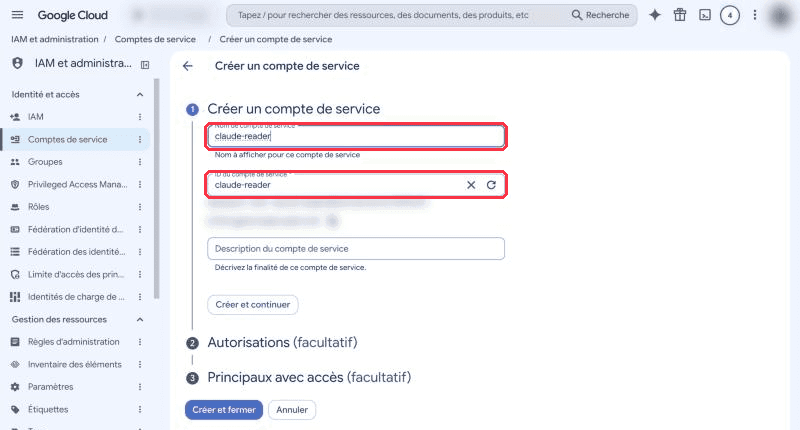
A clear name is enough. No Cloud role is needed.
Once the account is created, open it, go to the Keys tab, then Add key > Create new key, pick the JSON format and confirm. The file downloads immediately. Google won't give it to you again: if you lose it, you create a new key.
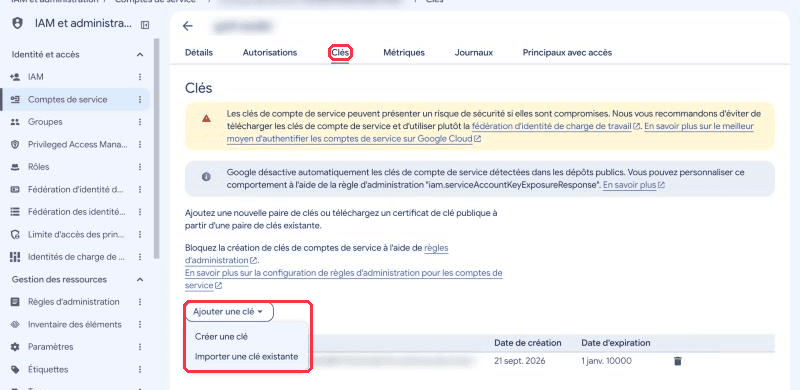
The "Keys" tab, then "Add key > Create new key". Google shows a warning about key risks along the way: it's legitimate, hence the security rules further down.
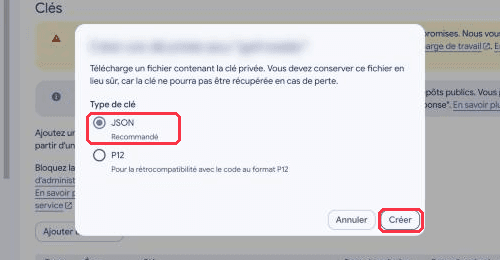
JSON format (recommended), then "Create". The file downloads exactly once.
If Google refuses to create the key with a message about an organization policy (iam.disableServiceAccountKeyCreation), your Google Workspace organization blocks service account keys by default. An administrator can lift that constraint for this specific project under IAM & Admin > Organization Policies.
Where to store the JSON file
This file is a key to your data. Treat it like a password: never in a Git repository, never in a shared folder, never pasted into a conversation.
Rename it to something simple (for example claude-reader.json) and store it somewhere stable, depending on how you use Claude.
If Claude works in a folder on your computer (Claude Code, or the Claude desktop app with a connected folder): create a dedicated subfolder inside the folder Claude can access, for example Claude/google-access/claude-reader.json. Then tell Claude where the file is and what it's allowed to do with it. It will use Google's official Python libraries to query the APIs. If that folder is under version control, add the file to your .gitignore.
If you go through MCP servers in Claude Desktop: store the file outside of any synced folder, for example /Users/your-name/.config/google/claude-reader.json on a Mac, then declare the servers in Claude Desktop's configuration file. You'll find it at ~/Library/Application Support/Claude/claude_desktop_config.json on Mac and %APPDATA%\Claude\claude_desktop_config.json on Windows (also reachable from Claude Desktop: Settings > Developer > Edit config).
Here is a configuration that wires up GA4, Search Console and Google Ads with the same file:
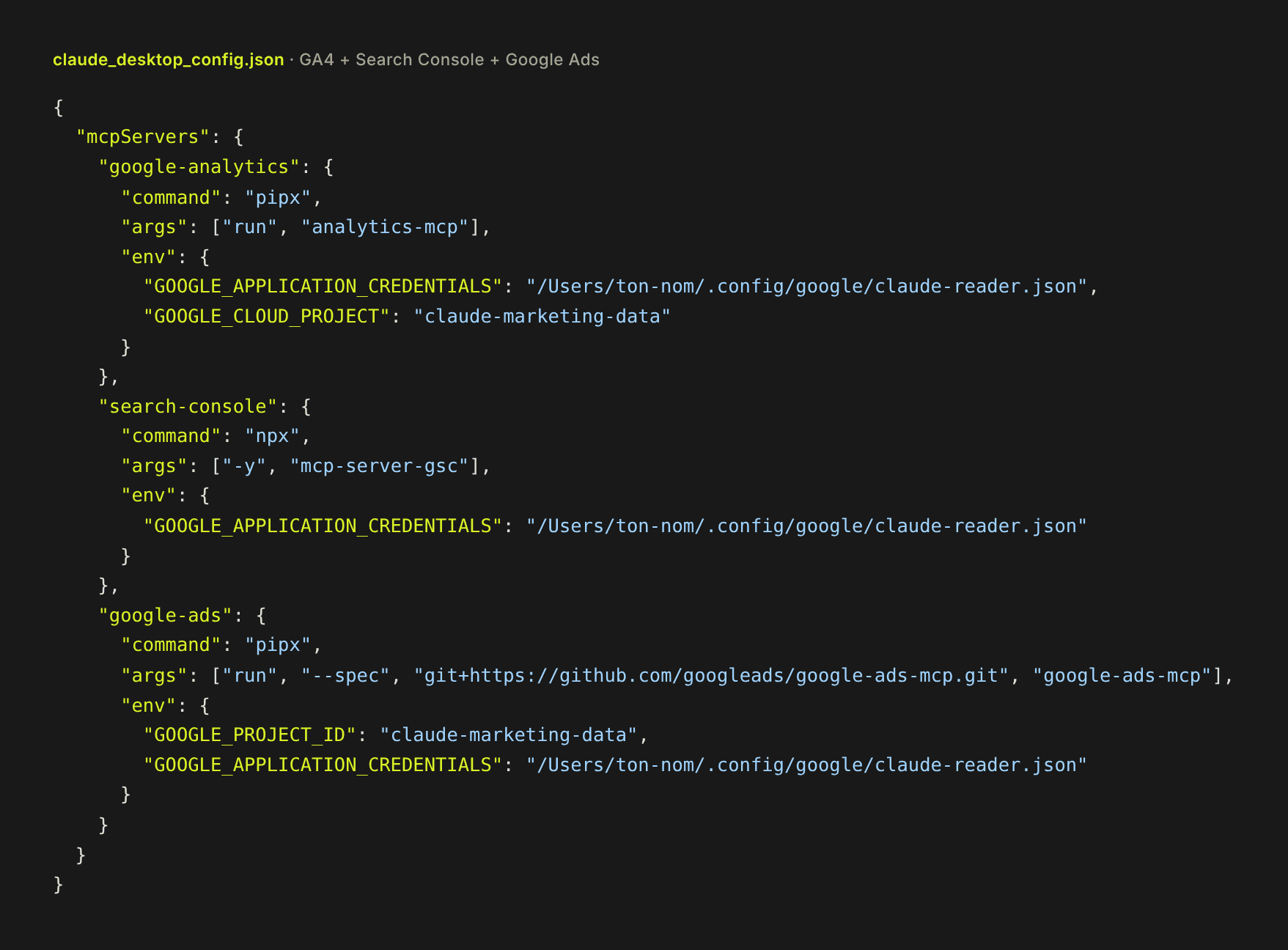
Three details that will save you an hour of debugging:
- Absolute paths only. No
~and no$HOMEinGOOGLE_APPLICATION_CREDENTIALS; Google says so explicitly in its documentation. pipxandnpxmust be installed (Python 3.10+ with pipx for GA4 and Google Ads, Node.js 18+ for Search Console). If Claude Desktop can't find them, replacepipxwith its full path (/opt/homebrew/bin/pipxon a Mac with Homebrew; check withwhich pipx).- If you manage Google Ads through a manager account (MCC), add
"GOOGLE_ADS_LOGIN_CUSTOMER_ID": "1234567890"(the MCC's ID, without dashes) to thegoogle-adsblock.
Restart Claude Desktop. The tools show up in the conversation's connectors menu.
For GTM, there is currently no maintained MCP server that accepts a service account (the best-known one, OAuth-based, has been archived since April 2026). So the "folder" route is the right one: Claude reads the Tag Manager API with the same JSON, read-only.
Step 3: add the service account as a user in each tool
This is the step everyone forgets, and the number one cause of "403 Permission denied" errors. The service account exists, but no tool knows about it yet. You have to invite it everywhere, like a colleague, with the email address you wrote down at step 2.
Golden rule: read-only everywhere, unless you have an explicit need.
Google Analytics 4
In GA4, click Admin (the gear at the bottom left), then, at the property level, Property access management. Click +, then Add users.
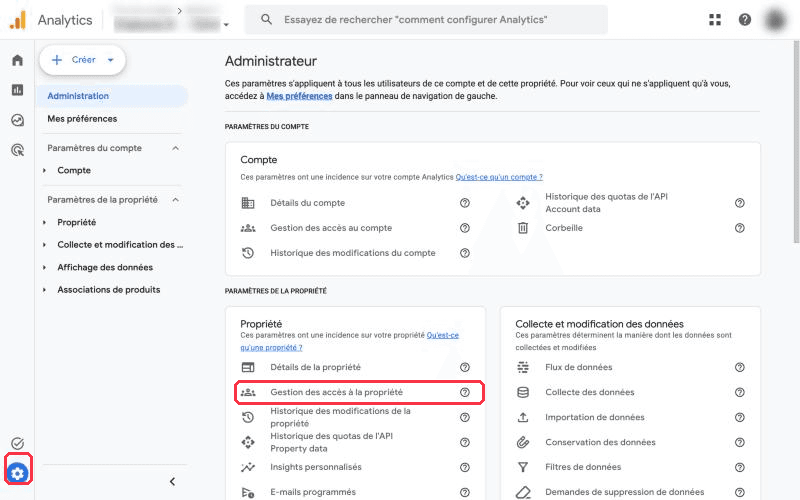
Access is granted at the GA4 property level (or at the account level, if you want to cover all its properties).
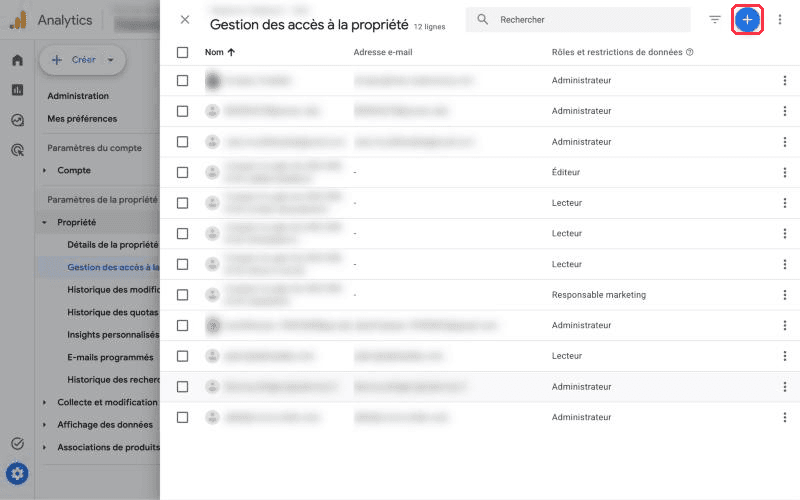
The "+" button at the top right, then "Add users".
Paste the service account's email address, uncheck "Notify new users by email" (nobody will read that inbox), pick the Viewer role, then Add.
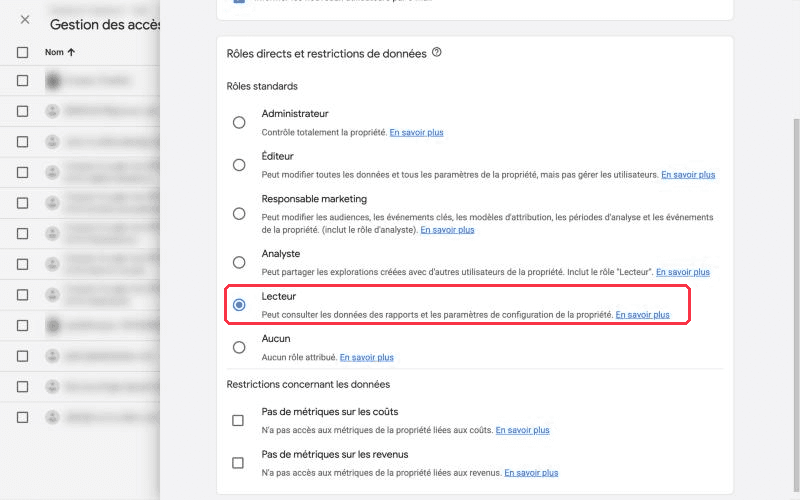
The Viewer role is enough for all reports, including funnels and realtime.
Search Console
In Search Console, select the property, then Settings > Users and permissions > Add user. Paste the email address and pick the Restricted permission.
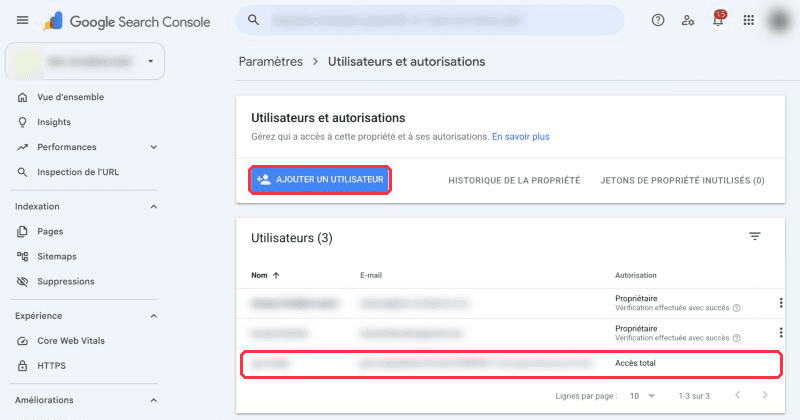
The property's user list. Here, the service account already shows on the last line.
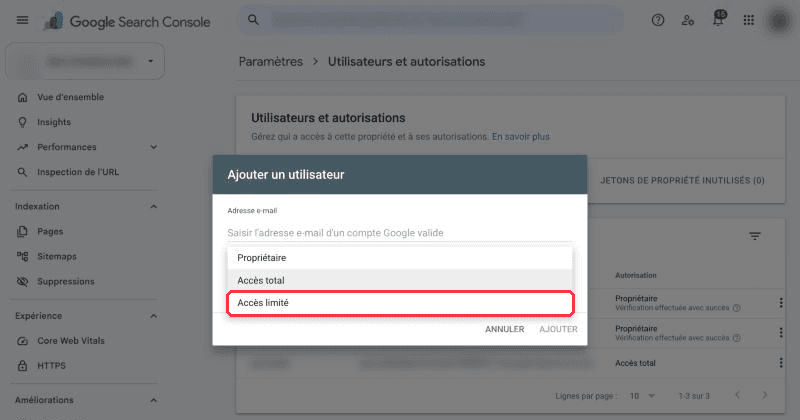
Three levels: Owner, Full, Restricted. To read the data, "Restricted" is enough.
Restricted is enough to read performance data (clicks, impressions, positions, queries, pages). Switch to Full only if you want Claude to manage sitemaps too. Repeat for each property: a domain and its separately declared subdomains are that many distinct properties.
Google Tag Manager
In GTM, go to Admin, then, in the account column, User Management. Click + > Add users and paste the email address.
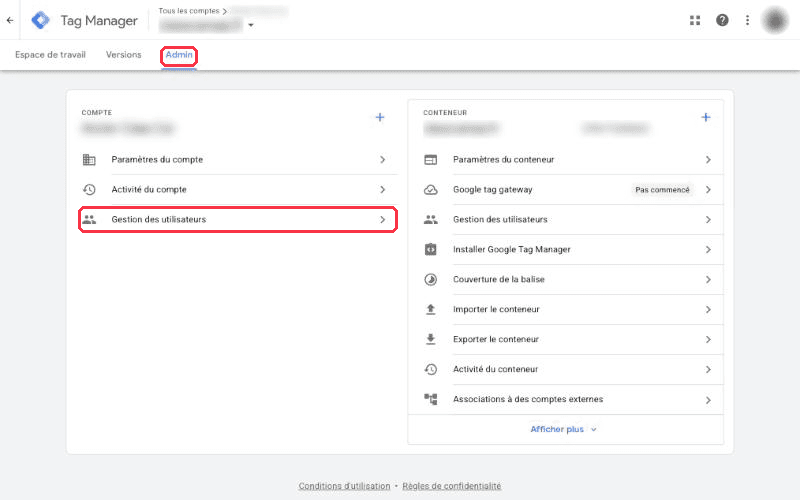
Access is granted at the GTM account level, then container by container.
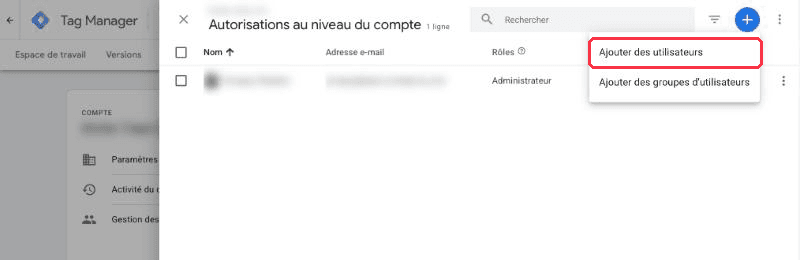
The blue "+", then "Add users".
Leave the account permission on User, then click the container's row to grant it the Read permission. That's enough to list tags, triggers, variables and the history of published versions, which is exactly what you care about in a diagnostic.
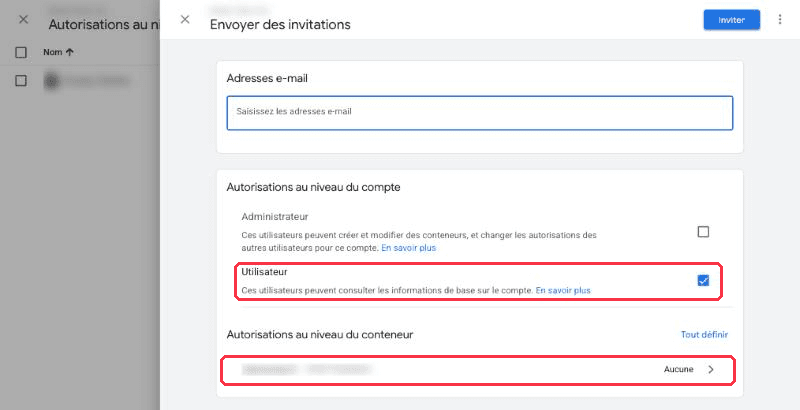
At the account level: "User". At the container level: click the row to set the permissions.
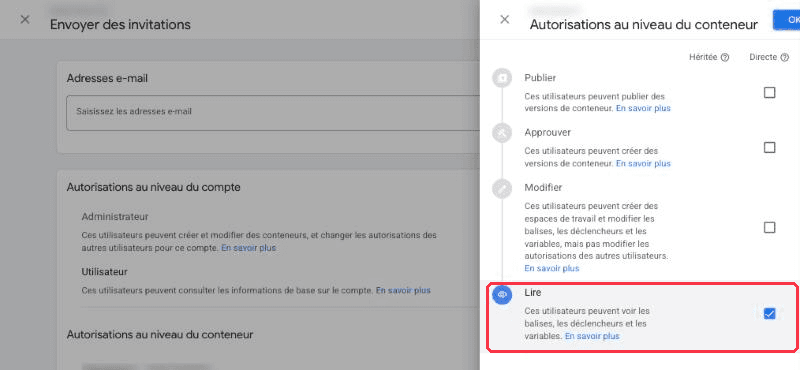
"Read" only: Claude sees tags, triggers and variables, and modifies nothing.
Google Ads
In Google Ads, go to Admin > Access and security, the Users tab, then click +. Paste the email address, pick the Read only level and confirm.
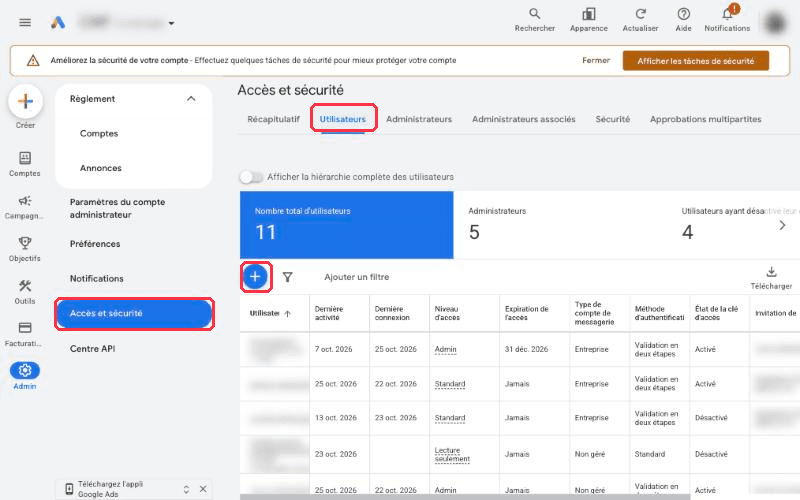
Admin > Access and security > Users, then the "+" button.
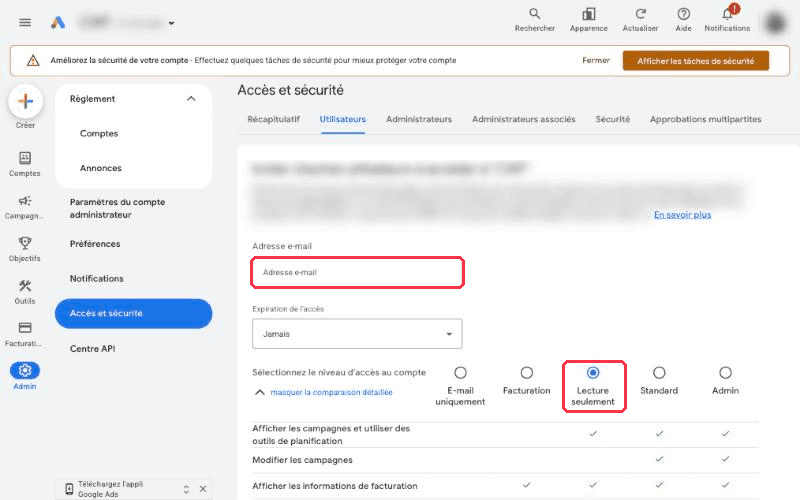
The "Email only" level isn't available for a service account. "Read only" is the right choice.
Two limits documented by Google: a single address can be added to at most 20 Google Ads accounts (beyond that, add it to your MCC), and the official MCP server is read-only anyway. It can neither change a bid nor pause a campaign. For a first setup, that's excellent news.
What about Meta Ads?
Meta doesn't work with Google service accounts, obviously, but the good news is that it's even simpler. Since late April 2026, Meta has offered an official MCP server for its ads in open beta, compatible with Claude.
In Claude, go to Settings > Connectors, add a custom connector with the Meta server's URL (https://mcp.facebook.com/ads), then sign in with your Facebook account. Meta then asks you which ad accounts and which pages to authorize, and whether in read-only or read-and-write mode.
Pick read-only. Unlike Google, the Meta server can create and modify campaigns from day one, which means spending money. Start with analysis; you'll open up write access once you know exactly what you're delegating. Access can be revoked at any time in Meta Business Suite.
What you can ask Claude, concretely
Once connected, the value comes from the quality of your questions. A few that work well:
- "Compare last week's GA4 sessions and conversions to the previous week, by channel, and flag any gap above 10%."
- "List the 20 pages that lost the most clicks in Search Console over the last 28 days, with the change in their average position."
- "Organic traffic has been dropping since the 12th. Cross-reference GA4, Search Console and the GTM version history to tell me what changed that day."
- "Audit the GTM container: paused tags, unused triggers, GA4 events being sent that aren't in my tagging plan (attached)."
- "In Google Ads, pull the search terms from the last 30 days that spent money without a single conversion."
- "Compare Google Ads and Meta Ads cost per acquisition over the month, campaign by campaign."
The habit to build: always ask Claude to state the date range, the property and the query it used. You keep control of the verification, and you learn what the API can do along the way.
Security and compliance: the five rules I apply
- One service account per use case, or even per client. The day an engagement ends, you delete the key, and every access drops at once.
- Read-only everywhere. Write access is a separate decision, tool by tool, with human validation.
- The JSON key never leaves your machine. No Git, no shared Drive, no email. If it leaks, delete it in Google Cloud and create a new one.
- Regular rotation. A new key every three to six months costs nothing.
- Check the contractual framework before connecting a client's data. GA4 or Google Ads data flows through your conversations with Claude. Depending on the contract, the industry (healthcare, typically) and your Claude plan, that's not neutral. Ask the question before, not after.
In short
One hour of setup, once: a Google Cloud project, five enabled APIs, a service account, a safely stored JSON key, and one email address added with read access in GA4, Search Console, GTM and Google Ads. Meta connects separately, in a few minutes, through its official connector.
What changes afterwards isn't the technology. It's that "why did traffic drop?" gets a numbers-backed answer in two minutes instead of two days, and you spend your time deciding instead of exporting CSVs.
If you want to set this up in your team, or go further (automated reporting, alerts, recurring tagging audits), let's talk.